
Have you ever typed a date into Excel only to see it turn into a strange number like 45442? Or spent extra time manually typing currency symbols or units like “USD”, “pcs”, or “lbs” next to every number?
All these issues can be resolved in seconds once you understand Cell Formatting using the shortcut Ctrl + 1. In this guide, we cover 3 essential cell formatting techniques every Excel user should know.
1. Apply Thousands Separators (,) and Currency Formats
Large numbers without commas are difficult to read. You can format numbers cleanly in just a few clicks.
- Select the range of cells containing the numbers.
- Press
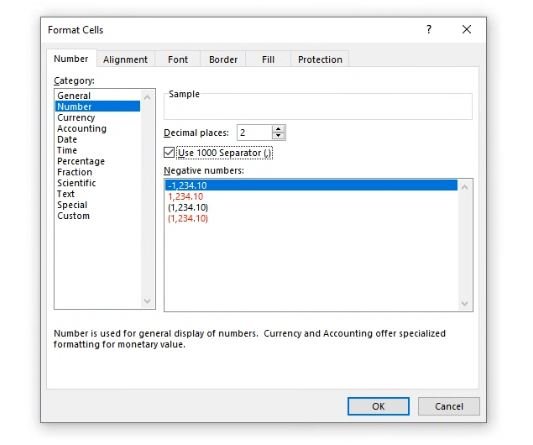
Ctrl+1to open the Format Cells dialog box. - Navigate to [Number] ➔ [Number] in the Category menu.
- Check the box for ‘Use 1000 Separator (,)’ and click OK.
💡 Quick Tip: You can also click the Comma Style (
,) button directly in the Home tab on the ribbon menu!
2. Append Custom Units (“USD”, “pcs”, “items”) Automatically
If you manually type text alongside numbers in a cell (e.g., 100 pcs), Excel treats the cell as Text, which prevents functions like SUM or AVERAGE from calculating properly!
To keep numeric properties intact for calculations while displaying custom units on screen, use Custom Formatting:
- Press
Ctrl+1➔ Go to [Number] tab ➔ Click [Custom]. - In the Type input box on the right, enter one of these formatting codes:
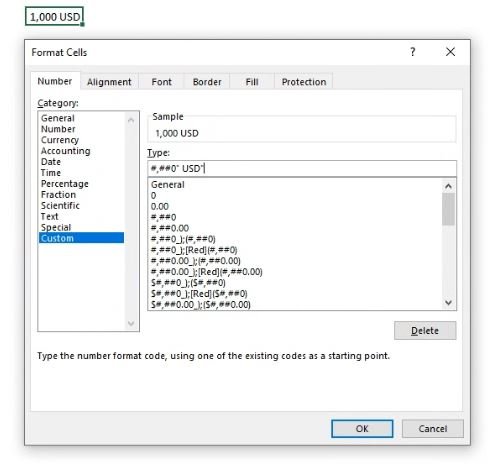
#,##0" USD"➔ Formats with thousands commas and appends ‘USD’ (e.g.,1,000,000 USD)#,##0" pcs"➔ Appends quantity units (e.g.,50 pcs)0000➔ Pads leading zeros to match a fixed digit length (e.g., entering5displays as0005)
3. Fix Corrupted or Numeric Date Displays
When entering dates, you might occasionally see raw serial numbers like 46225 instead of 2026-07-22. This happens because Excel calculates dates as sequential serial numbers starting from January 1, 1900.
- How to Fix: Select the cells ➔ Press
Ctrl+1➔ Choose [Date] ➔ Select your preferred date format (e.g.,YYYY-MM-DDorMM/DD/YYYY).
📊 High-Yield Custom Formatting Codes for Daily Use
| Raw Data | Custom Format Code | Displayed Result | Practical Description |
|---|---|---|---|
| 1234567 | #,##0 | 1,234,567 | Standard thousands separator |
| 1234567 | #,##0" USD" | 1,234,567 USD | Thousands separator + currency suffix |
| 50 | #,##0" pcs" | 50 pcs | Quantity suffix (retains formula usability) |
| 20260722 | 0000-00-00 | 2026-07-22 | Formats 8-digit numbers as standard dates |
Conclusion
Mastering Cell Formatting dramatically improves data readability and prevents formula errors before they happen.
This concludes our essential Basics series (Shortcuts, Formulas, and Formatting)!
Starting with our next post, we will move into the Tools category to explore powerful productivity features: Pivot Tables and VLOOKUP / XLOOKUP functions.