
If you are just starting out with Microsoft Excel, mastering a few frequently used keyboard shortcuts is far more effective than trying to memorize complex formulas right away.
In this guide, we skip complicated key combinations and organize the top 10 must-know Excel shortcuts in a logical order—moving from the easiest single-key commands to practical multi-key combinations.
🟢 Level 1: Super Easy Shortcuts (Beginner Level)
These straightforward shortcuts follow intuitive logic, allowing you to apply them to your daily workflow immediately.
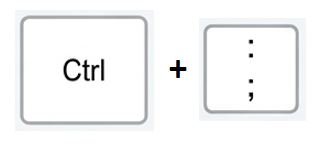
1. Ctrl + ; ➔ Insert Today’s Date Instantly
- Frequency: ★★★★★
- Description: Pressing the semicolon (
;) withCtrlimmediately stamps today’s date into the active cell. No need to type out dates manually when creating daily reports or logs.

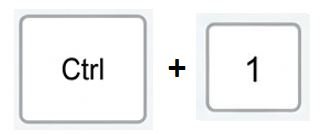
2. Ctrl + 1 ➔ Open Format Cells Window
- Frequency: ★★★★★
- Description: Just remember the number ‘1’! This shortcut opens the Format Cells dialog far quicker than right-clicking with your mouse—ideal for adjusting borders, number formats, or cell colors.
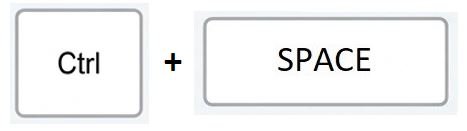
3. Ctrl + Space ➔ Select Entire Column
- Frequency: ★★★★☆
- Description: Instantly selects the entire vertical column where your cursor is currently located.
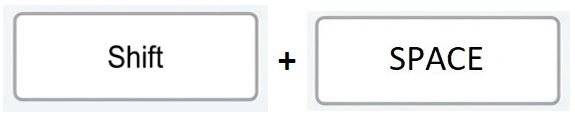
4. Shift + Space ➔ Select Entire Row
- Frequency: ★★★★☆
- Description: While
Ctrlhandles columns,Shiftcontrols rows. Memorize these two as a pair to quickly move or delete full data rows.
🟡 Level 2: Work Efficiency Boosters (Two-Key Combos)
Eliminate repetitive clicking and scrolling with these essential productivity shortcuts.
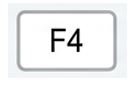
5. F4 ➔ Repeat Last Action & Toggle Absolute Reference
- Frequency: ★★★★★
- Description: If you just highlighted a cell in yellow, simply select another cell and press
F4to repeat the action. When editing formulas, it toggles cell references to absolute format ($A$1).
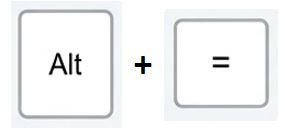
6. Alt + = ➔ AutoSum (SUM Formula)
- Frequency: ★★★★★
- Description: Since
=represents math operations, combining it withAltprompts Excel to automatically detect adjacent numerical data and insert aSUMformula.
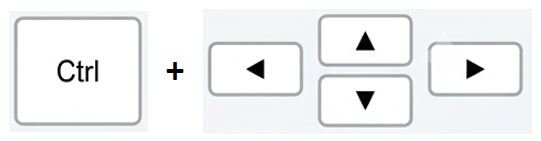
7. Ctrl + Arrow Keys ➔ Jump to Edge of Data Region
- Frequency: ★★★★☆
- Description: Instead of endlessly scrolling through thousands of rows, jump directly to the last populated row or column in a single keystroke.
🟠 Level 3: Applied Shortcuts for Speed
While these involve three keys, learning them will cut your data management time in half.
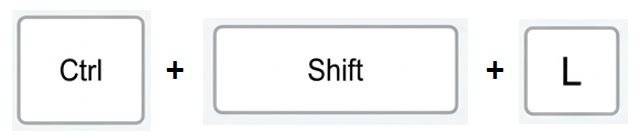
8. Ctrl + Shift + L ➔ Toggle AutoFilter On / Off
- Frequency: ★★★★★
- Description: Think of ‘L’ as Lock or Filter. Instantly apply or remove filter dropdown arrows across your header row.
9. Ctrl + Shift + Arrow Keys ➔ Select Entire Data Range
- Frequency: ★★★★☆
- Description: Combines navigation with selection. This shortcut jumps to the end of your dataset while selecting every cell along the way.

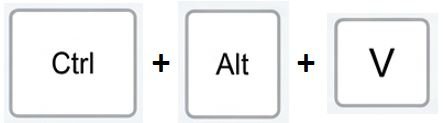
10. Ctrl + Alt + V ➔ Open Paste Special
- Frequency: ★★★★☆
- Description: Used after standard copying (
Ctrl+C) to paste values only, keeping formulas intact, or to replicate formatting across cells.
📊 Quick Summary Table
| Rank | Primary Function | Windows Shortcut | Difficulty |
|---|---|---|---|
| 1 | Insert Today’s Date | Ctrl + ; | ⭐ (Very Easy) |
| 2 | Open Cell Formatting | Ctrl + 1 | ⭐ (Very Easy) |
| 3 | Select Entire Column | Ctrl + Space | ⭐ (Very Easy) |
| 4 | Select Entire Row | Shift + Space | ⭐ (Very Easy) |
| 5 | Repeat Action / Lock ($) | F4 | ⭐ (Easy) |
| 6 | Insert AutoSum | Alt + = | ⭐ (Easy) |
| 7 | Jump to Data Edge | Ctrl + Arrow | ⭐ (Easy) |
| 8 | Toggle Filters | Ctrl + Shift + L | ⭐ (Moderate) |
| 9 | Select Full Range | Ctrl + Shift + Arrow | ⭐ (Moderate) |
| 10 | Open Paste Special | Ctrl + Alt + V | ⭐ (Moderate) |
Conclusion
Don’t try to memorize all ten shortcuts at once. Start with Level 1 (Shortcuts 1–4) today, and incorporate them into your daily tasks. You will notice an immediate boost in your working speed!
Stay tuned for our next guide on 5 Essential Excel Formulas Every Beginner Must Know (SUM, AVERAGE, COUNT, MAX, MIN).
🍎 Mac & iOS (iPad Keyboard) Equivalents for TOP 10 Shortcuts
If you are using Excel on macOS or an iPad with a Magic Keyboard, use these macOS/iOS key combinations instead:
| Rank | Primary Function | Mac / iPad | Difficulty |
|---|---|---|---|
| 1 | Insert Today’s Date | Cmd (⌘) + ; | ⭐ (Very Easy) |
| 2 | Open Cell Formatting | Cmd (⌘) + 1 | ⭐ (Very Easy) |
| 3 | Select Entire Column | Ctrl + Space | ⭐ (Very Easy) |
| 4 | Select Entire Row | Shift + Space | ⭐ (Very Easy) |
| 5 | Repeat Action / Lock ($) | Cmd (⌘) + T | ⭐ (Easy) |
| 6 | Insert AutoSum | Cmd + Shift + T (or Option + ⌘ + =) | ⭐ (Easy) |
| 7 | Jump to Data Edge | Cmd (⌘) + Arrow | ⭐ (Easy) |
| 8 | Toggle Filters | Cmd (⌘) + Shift + F | ⭐ (Moderate) |
| 9 | Select Full Range | Cmd (⌘) + Shift + Arrow | ⭐ (Moderate) |
| 10 | Open Paste Special | Cmd (⌘) + Ctrl + V (or Ctrl + Option + V) | ⭐ (Moderate) |
💡 Pro Tip for iPad Users: When using Microsoft Excel on an iPad with a Magic Keyboard or external Bluetooth keyboard, press and hold the Cmd (⌘) key for 2 seconds to instantly reveal an on-screen cheat sheet of supported shortcuts!