
If you find yourself manually deleting blank rows, trimming trailing spaces, and formatting headers every single day, Excel VBA (Visual Basic for Applications) can save you hours of repetitive work.
In this guide, you will learn how to set up VBA for the first time and run a simple macro that automates core data clean-up tasks with just one click.
What is an Excel Macro (VBA)?
A Macro is a series of recorded commands or automated scripts written in VBA (Visual Basic for Applications). Think of it as a personal assistant inside Excel that executes repetitive tasks instantly without human error.
Step 1: Open the VBA Editor Window
- Open your Excel workbook.
- Press
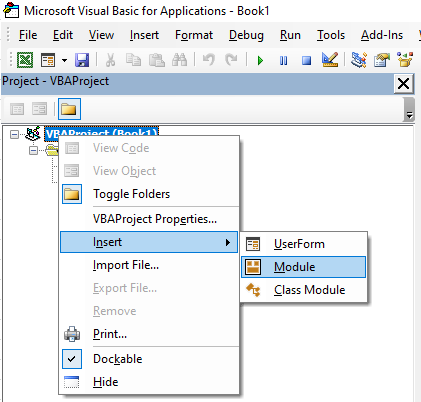
Alt + F11(Option + F11on Mac) on your keyboard to open the Visual Basic Editor. - In the top menu bar of the editor, click Insert ➔ Module. A blank white code window will appear.
Step 2: Copy and Paste the VBA Code
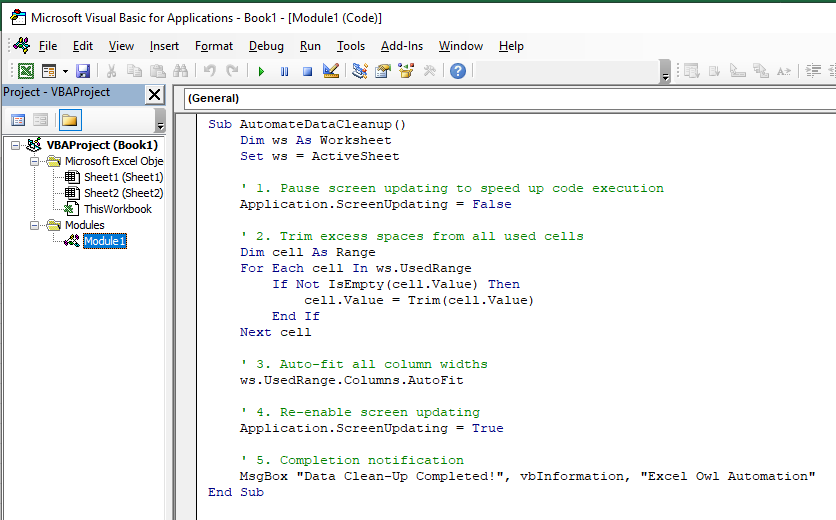
Copy the ENTIRE code block below (from Sub down to End Sub) and paste it directly into the blank module window:
Sub AutomateDataCleanup()
    Dim ws As Worksheet
    Set ws = ActiveSheet

    ' 1. Pause screen updating to speed up code execution
    Application.ScreenUpdating = False

    ' 2. Trim excess spaces from all used cells
    Dim cell As Range
    For Each cell In ws.UsedRange
        If Not IsEmpty(cell.Value) Then
            cell.Value = Trim(cell.Value)
        End If
    Next cell

    ' 3. Auto-fit all column widths
    ws.UsedRange.Columns.AutoFit

    ' 4. Re-enable screen updating
    Application.ScreenUpdating = True

    ' 5. Completion notification
    MsgBox "Data Clean-Up Completed!", vbInformation, "Excel Owl Automation"
End Sub
Step 3: Run the Macro Using Alt + F8 Shortcut
You don’t need to open the VBA Editor every time you want to clean up your data. You can run your macro directly from your Excel spreadsheet using a quick shortcut:
- Switch back to your main Excel sheet window.
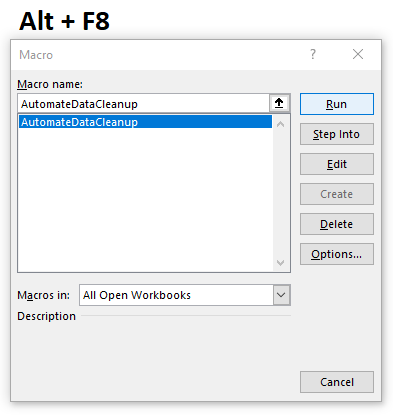
- Press Alt + F8 (
Option + F8on Mac) to open the Macro Dialog Box. - Select
AutomateDataCleanupfrom the list of available macros. - Click the Run button on the right.
💡 Pro Tip: Running directly inside VBA Editor
If you are still inside the VBA Editor code window, simply place your cursor anywhere inside the code and press F5 (or click the green Run ▶ icon at the top toolbar) to execute it immediately.
Step 4: Save as Macro-Enabled Workbook (.xlsm)
To ensure your new macro is preserved when you close Excel, you must save your file in a macro-enabled format:
- Click File ➔ Save As (or press
F12). - In the Save as type drop-down menu, select Excel Macro-Enabled Workbook (*.xlsm).
- Click Save.
⚠️ Important Note: Standard
.xlsxfiles cannot store VBA scripts. If you save as a normal.xlsxworkbook, your macro code will be permanently deleted!